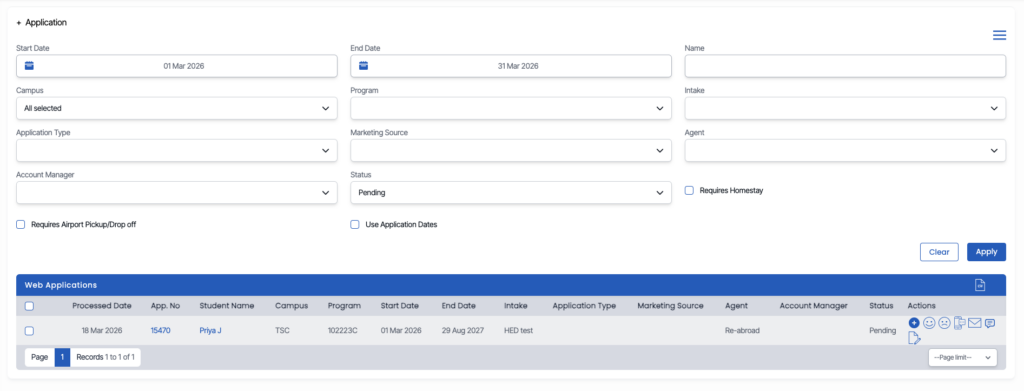
TEAMS allows colleges to enable webforms for agents so they can submit student applications directly from the Agent Portal dashboard. This helps streamline the application process and ensures that applications submitted by agents are automatically recorded in the system.
Accessing the Webform from the Agent Portal
When agents log in to the Agent Portal, they will see a dashboard that provides an overview of their activity through different tiles such as:
- Pending Applications
- Overdue Invoices
- Communications
- Documents
- Active Enrolments
- Commissions
Within the Pending Applications tile, there is a ‘+’ icon available in the top section of the tile.
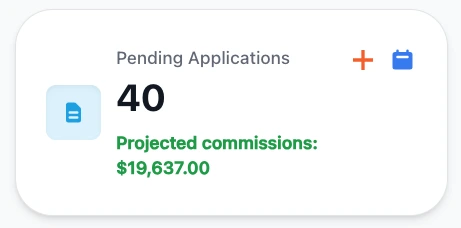
When an agent clicks this ‘+’ icon, the system opens the application webform, allowing the agent to submit a new student application.
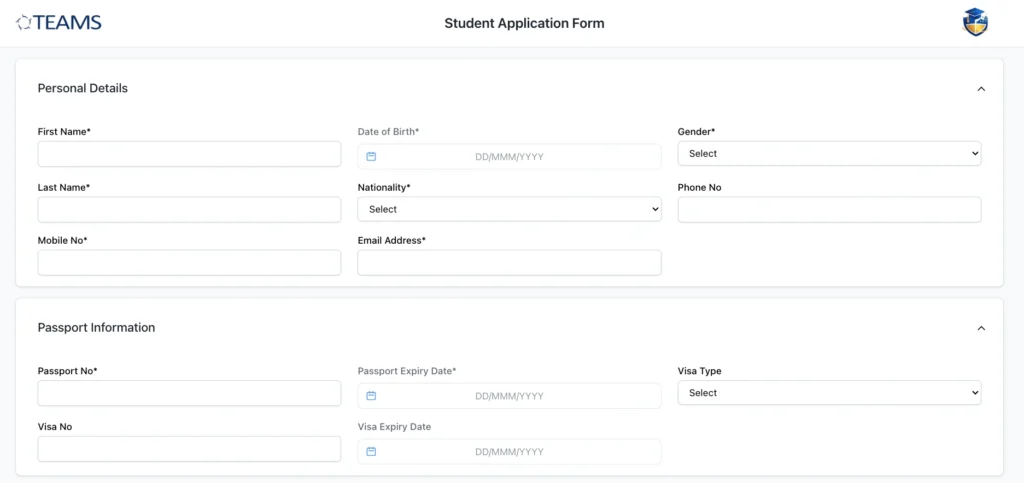
This allows agents to quickly create applications without needing access to the internal TEAMS system.
Enabling the Webform for the Agent Portal
For the webform to appear in the Agent Portal, it must first be configured within TEAMS.
To enable this:
- Navigate to the Webform form the admin menu in TEAMS.
- Open the Webform Entry screen.
- Create or edit a webform.
While configuring the webform, you will see fields such as:
- Form Name
- Form Title
- Form Subtitle
- Form Type
- Program selection
Below these fields, there are additional configuration options including the Default Agent Form checkbox.
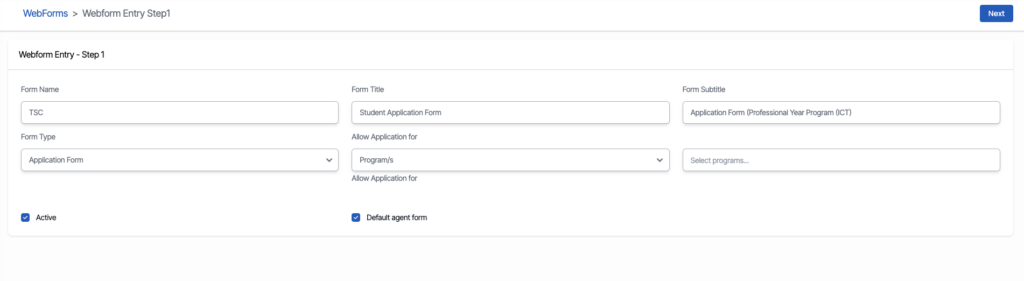
Default Agent Form Setting
To make the webform available to agents, the Default Agent Form checkbox must be enabled.
When this option is selected, the form becomes accessible to agents through the Pending Applications tile in the Agent Portal.
If the checkbox is not selected, the form will not be visible to agents.
This setting allows colleges to control which forms agents can use when submitting student applications.
How Agents Submit Applications
Once the webform has been enabled for the Agent Portal, agents can submit applications using the following process:
- Log in to the Agent Portal.
- Navigate to the Pending Applications tile.
- Click the ‘+’ icon.
- The configured webform will open.
- Enter the student’s details and submit the form.
Once submitted, the application will automatically be recorded in TEAMS and linked to the agent who submitted it.
The Default Agent Form setting ensures that webforms can be made available to agents in a controlled way.
By enabling this option, colleges allow agents to submit applications directly through the Agent Portal, improving efficiency and ensuring all application data is captured directly within TEAMS.
This feature helps streamline the agent application process while maintaining proper data tracking within the system.
Where to View Submitted Applications in TEAMS
All webform submissions, including both agent applications and website enquiries, can be viewed within TEAMS.
To access this:
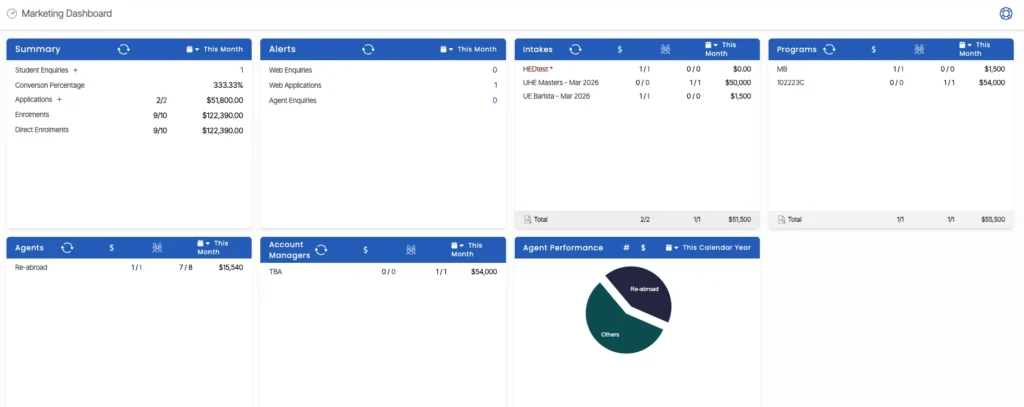
- Navigate to the Marketing menu.
- Click on the Marketing Dashboard.
- You will be redirected to the Marketing Dashboard screen.
- Locate the Alerts tile.
- Click on the number displayed against the Web Applications option.
You will then be redirected to the Web Applications listing screen, where all submitted applications are displayed.