Student Dashboard > Student Profile Tile
This tile provides an overview of the student’s basic information.
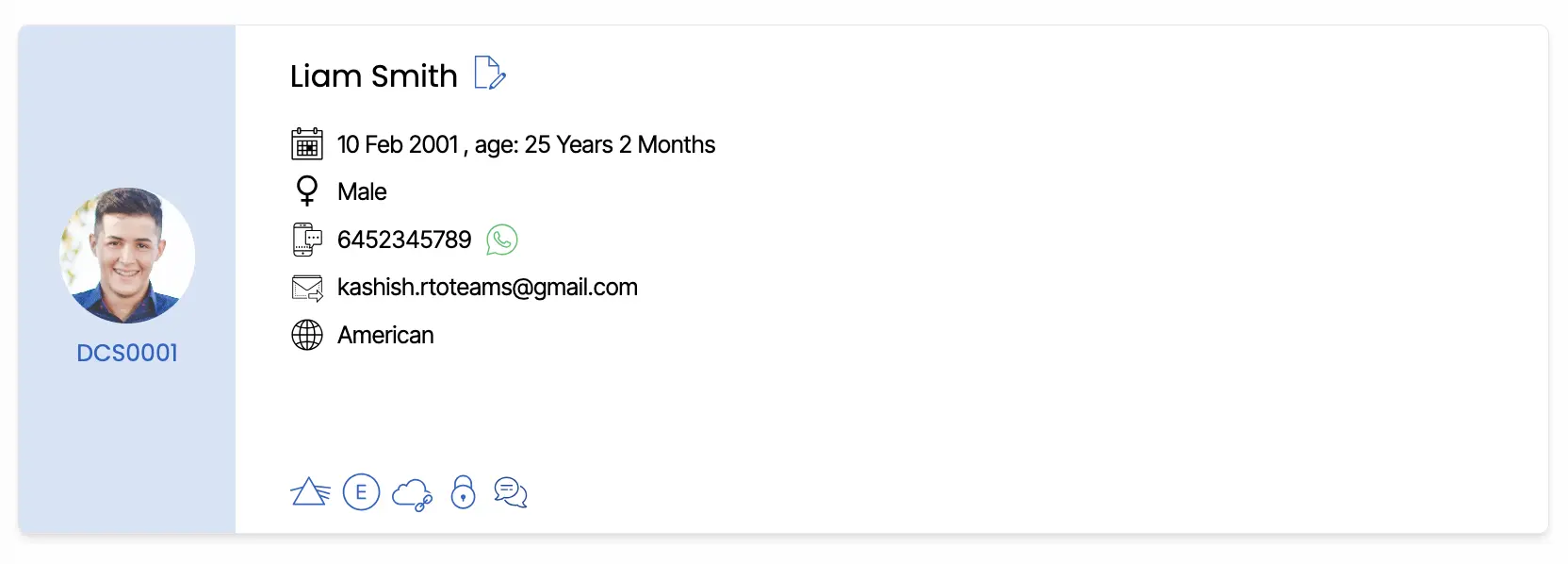
This tile displays key information about the student, including their date of birth, age, and gender. It also shows the student’s mobile number primary email address, and nationality.
Please Note: If a student has a WhatsApp Business account, the WhatsApp icon will be displayed. This allows you to send messages to the student directly from your business WhatsApp number within TEAMS.

For students with a current enrolment, you can control whether they can access the Student Portal.
Important- For students with a current enrolment, you can restrict Student Portal access while keeping the enrolment active for reporting purposes, such as AVETMISS.

Two options are available on the Student Dashboard: Restrict Portal Access and Revoke Portal Access.

When the unlocked icon is shown, the student currently has portal access. Clicking Revoke Student Portal Restriction will display a confirmation pop-up and require a reason. Once saved, the icon changes to a locked icon, the reason is recorded on the Student Dashboard, and the student can no longer log in to the portal or submit assessments.

If needed, access can later be restored using Revoke Portal Access.
Upload Student Profile Picture
You can upload a Student profile picture from here and edit the details as well for a student.
Icons





Chat Mention