Alerts – General > Student Requests – Done (last 30 Days) > +Manage Request Documents
On this screen, you will find a grid displaying a list of Student Requests completed within the past 30 days. Each request can be managed with options to download, view, edit, or delete as needed. Additionally, you have the capability to initiate a new request by simply selecting the +Add button located on the right-hand side of the screen.
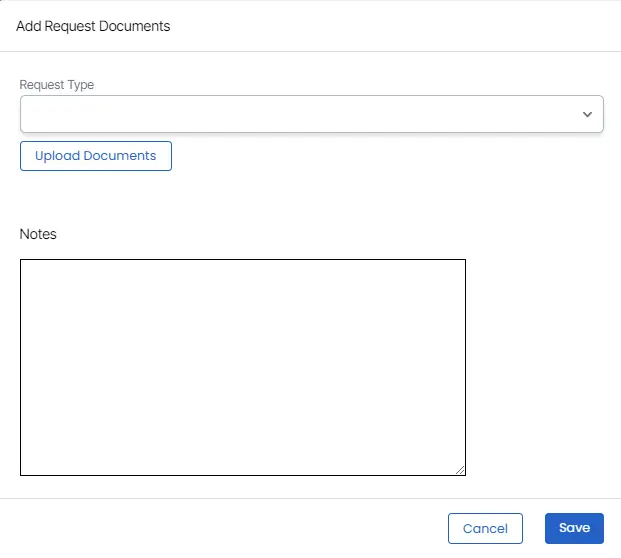
When you select the “Add” button, a pop-up window will appear, providing you with the means to create a new Request Type, upload any necessary documents, add relevant notes, and save the request.
IMPORTANT : When multiple documents are uploaded for a single request type, the system will generate multiple entries within the grid dedicated to that specific request.

Please ensure that the documents you are uploading are in PDF format only.
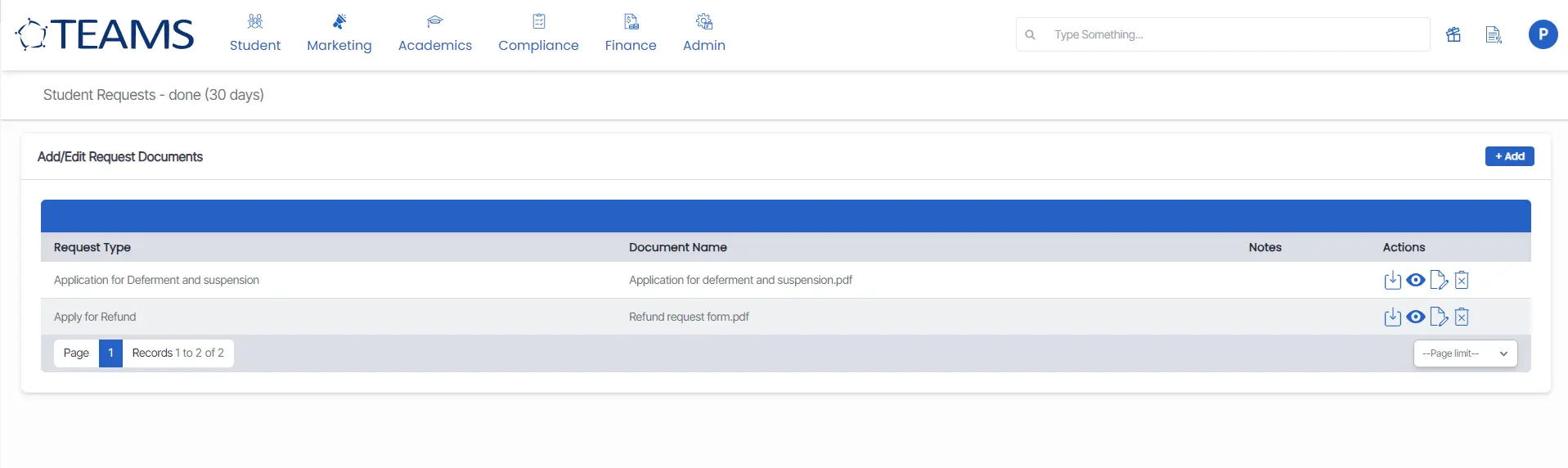
Click on the Add button to add/edit requested documents. A pop-up will appear and you can fill in the details and click on the save button.

Download Document
Click on this icon to download document

View Document
Click on this icon to view document

Edit Document
Click on this icon to edit document

Delete Document
Click on this icon to delete document