The TEAMSAgent Mobile App allows agents to manage their daily activities efficiently from anywhere. It provides a simplified and accessible interface to monitor applications, track student enrolments, view commissions, and access important information directly from a mobile device.
The app presents key information through interactive tiles, each representing a specific area of data. Agents can tap on any tile to access detailed records and manage their tasks on the go.
Understanding the Agent App Dashboard
When agents log in to the Agent Mobile App, they are presented with a dashboard containing multiple tiles.
Each tile displays a summary of key information and provides quick access to the listing screen for that section.
The tiles available include:
- Pending Applications
- Overdue Invoices
- Communication
- Documents
- Active Enrolments
- Commission Due
- Future Commissions
- Paid Commissions
Agents can tap on any tile to view detailed records.
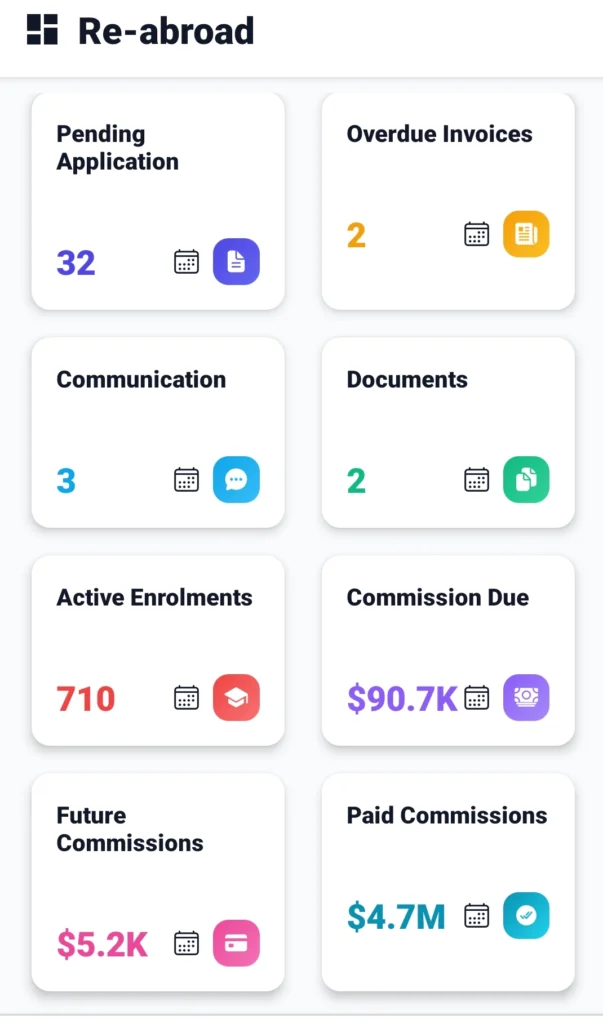
Tile Navigation and Icons
Each tile is designed to provide quick access to information and includes a calendar icon for filtering.
Calendar Icon – Date Range Filter
The calendar icon allows agents to select a date range to filter the data displayed within a tile.
Once the date range is updated, the tile automatically refreshes and displays records based on the selected period.
Data Filtering and Search
The Agent App allows agents to refine displayed data using filters.
Agents can use these filters to:
- View recent records
- Review historical data
- Track financial information within a selected time period
Some listing screens also include advanced search filters such as:
- Program
- Campus
In addition, listing screens may include a CSV download option, allowing agents to export data for reporting or offline reference.
Pending Applications Tile
The Pending Applications tile displays the number of applications that have not yet been converted, along with the projected commission amount.
The listing screen includes:
- Student and program information
- Campus
- Linked account manager
- Commission amount
Student Overdue Invoices Tile
The Overdue Invoices tile displays invoices that have passed their due date and remain unpaid.
Each record includes:
- Student details
- Invoice details and due date
- Invoiced amount
- Paid amount
- Balance amount
Communications Tile
The Communications tile provides access to all communication records related to the agent.
The listing screen acts as a centralised log of:
- Contact logs
- SMS
- Email communications
Each record includes key details along with a view option to review the communication. By default, contact logs and SMS are visible in the Agent App once created.
However, for emails, users must select the option “Show in Agent Portal” while sending the email. Only when this option is selected will the email be visible to the agent. This ensures organisations have full control over which email communications are shared with agents.
Documents Tile
The Documents tile allows agents to access all relevant documents in one central location.
Agents can:
- Filter documents by date
- Download documents directly to their device
Documents will only appear in the Agent App if they have been made available to the Agent Portal. When uploading or editing a document in TEAMS, users must select the “Make Available on Agent Portal” checkbox. Only then will the document be visible to the agent.
Bulk Document Sharing (Program / Campus Level)
In addition, TEAMS allows documents to be shared in bulk from the Program or Campus level.
When adding a document in the Program or Campus Documents tab, users can:
- Select the document
- Make it public
- Choose the scope as either all agents or limited agents
This method is recommended when sharing:
- Marketing materials
- Program brochures
- Student handbooks
- Campus-level information
as it allows documents to be distributed efficiently without uploading them individually for each agent.
Active Enrolments Tile
The Active Enrolments tile displays students currently enrolled through the agent.
The listing screen includes:
- Commission amount
- Student and program information
- Enrolment number
- Campus
- Start and end dates
Commission Due Tile
The Commission Due tile displays commissions that are due but not yet paid.
The listing screen provides:
- Student and program details
- Campus
- Student received amount
- Agent invoice amount
- Commission details
Paid Commissions Tile
The Paid Commissions tile displays historical records of all processed commission payments.
Each record includes:
- Student details
- Enrolment information
- Transaction number
- Transaction date
- Paid amount
Managing Your Profile and App Settings
Agents can manage their profile and settings directly within the Agent App.
If updates to profile information are required, agents can submit Change Requests, which are recorded and displayed with the most recent request first. Agents can also update their password using the Change Password option, helping maintain account security.
From an organisation’s perspective, users in TEAMS can reset or update an agent’s password directly from the Agent Entry screen. This is particularly important when an agent is no longer working with the organisation, ensuring immediate control over access. Only active agents can log in to the Agent App. Inactive agents will not have access.
The app also supports Light Mode and Dark Mode, allowing users to switch between viewing modes based on their preference.