The Agent Portal is a dedicated platform within the Student Management System that provides agents with a centralised view of all their key activities and information. It provides quick access to all essential information and functions through user-friendly tiles, each representing a distinct area of data, enabling agents to manage their tasks efficiently.
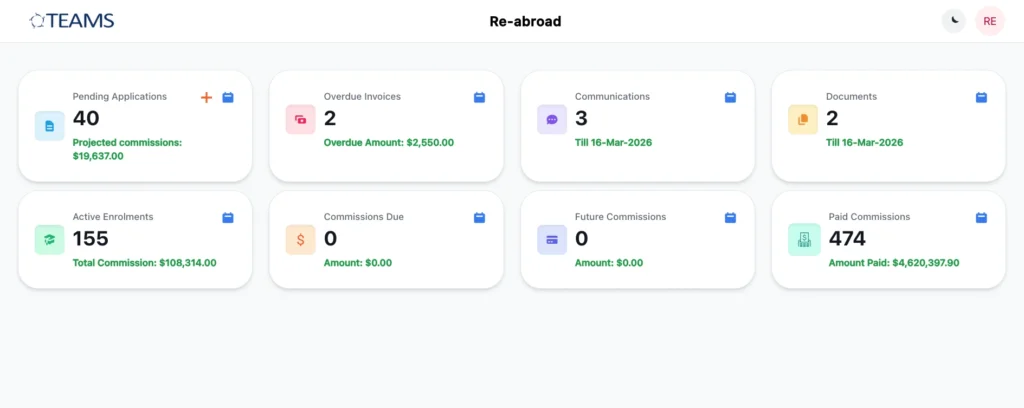
Each tile includes a set of icons for specific functions:
The ‘+’ icon on the Pending Applications tile redirects to the agent-linked webform, allowing the agent to create the new student application.
The tile itself is clickable and opens the listing screen displaying all relevant records related to that tile.
The calendar icon allows agents to select a date range to view data for that specific period. The selected range is displayed beside the calendar icon on the tile.
NOTE: Upon changing the date range for any tile, it will quickly reload and display the records accordingly.
Data Filtering Across Tiles
Each tile includes date range filters and search functions to refine displayed data. This allows agents to:
- Focus on recent transactions or applications
- Review historical data for reporting purposes
- Track financial records within a specific time period
Advance Search Filters:
Some tiles also include Advanced Search options that include Program and Campus filters to modify search and filter out more data.
The Pending Application Tile
The Pending Applications tile displays the projected commission amount, while its listing screen shows all applications that have not yet been converted yet.
The listing grid includes key details such as:
- Student and program information
- Campus
- Linked account manager
- Commission amount
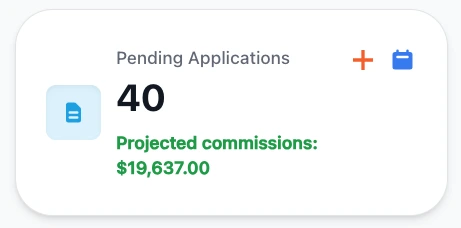
The commission column allows users to sort records in ascending or descending order using the arrow icons that are beside the Commission header name.
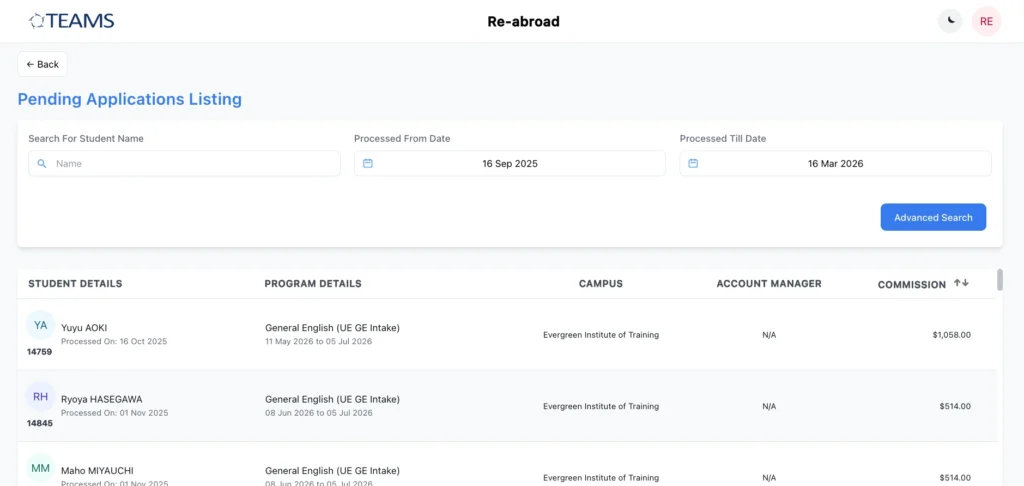
Additionally, agents can use the ‘+’ icon available on the tile to open the agent-linked webform and submit a new student application directly from the Agent Portal.
The Student Overdue Invoices Tile
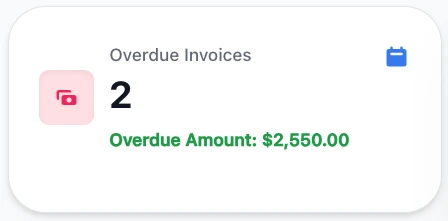
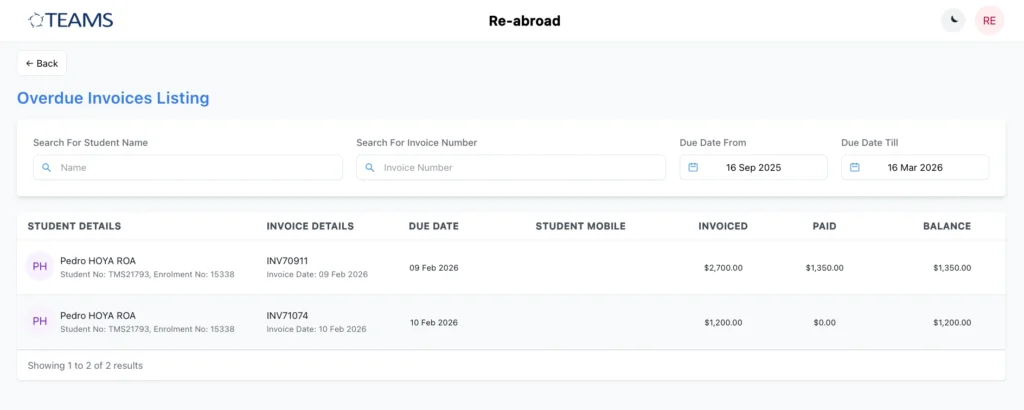
The Overdue Invoices tile shows the student’s total overdue amount, and its listing screen displays all invoices that have passed their due date and remain unpaid by the student’s side.
Each record includes:
- Student details
- Invoice details and due date
- Student mobile number
- Invoiced amount
- Paid amount
- Balance amount
The Communications Tile

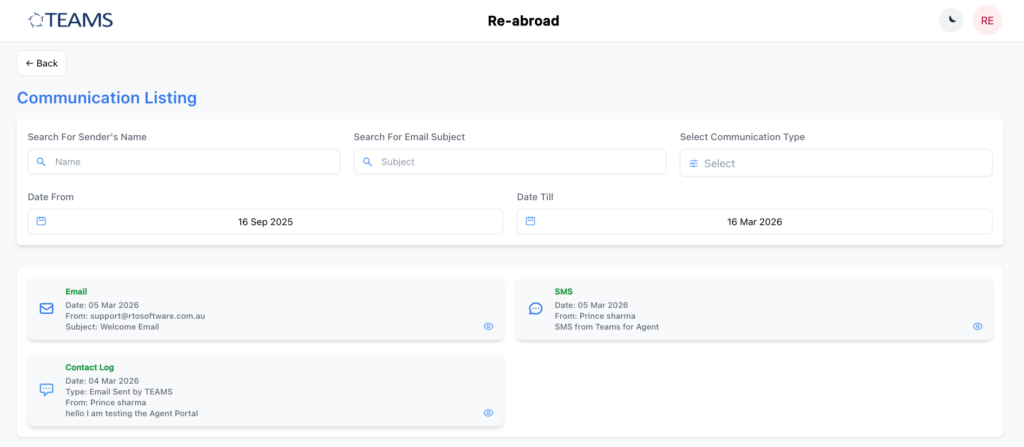
The Communications listing screen serves as a centralised log of all messages, contact logs, and emails that are communicated with the Agent. Each record displays key details along with a view icon, enabling agents to open and review individual communications to view in detail.
The Document Tile
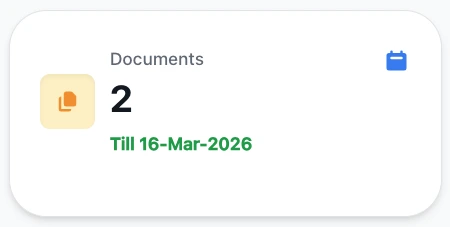
The Documents tile securely stores all agent-related documents in one central location so that it will be easy for the agent to access all of them from one place.
Agents can:
- Search and filter documents by date range.
- Upload new documents via the ‘+’ icon, which will be visible in TEAMS → Agent Dashboard → Document Log
- Download files using the download icon available for each document
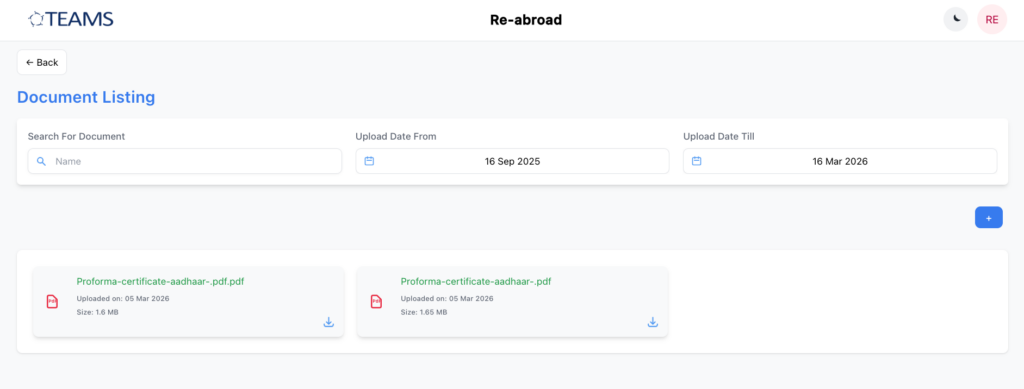
Enhancement: Documents downloaded from the portal will now download directly to the user's device instead of opening in the same browser window.
The Active Enrolment Tile
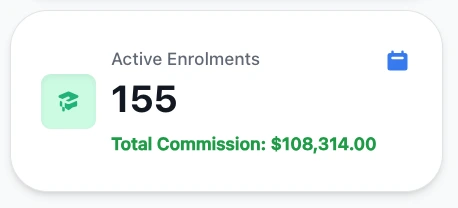
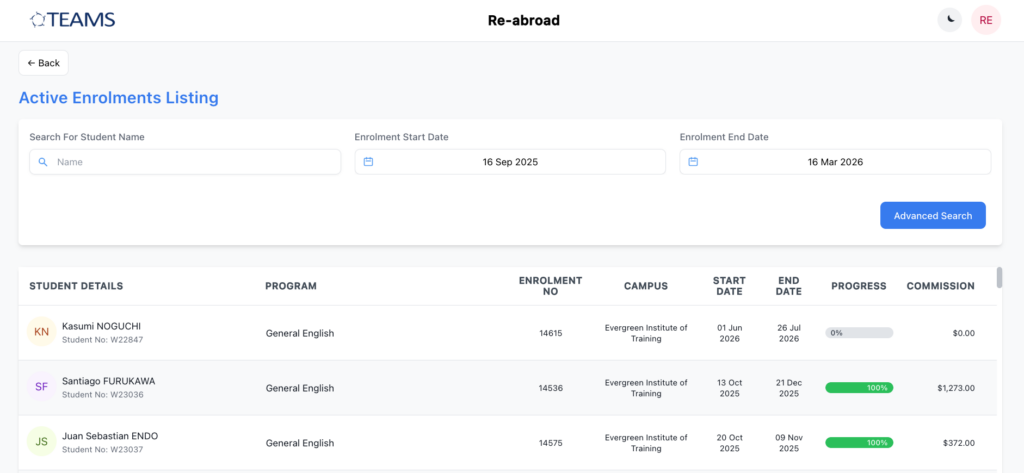
The Active Enrolments listing screen displays all students currently active and sent through the agent. Upon changing the date range, the count of student numbers can increase or decrease if the dates have been changed by the Agent.
The listing grid will display:
- Student and program information
- Enrolment number
- Campus
- Start and end dates of the enrolment
- Associated commission amount
The Commission Due Tile
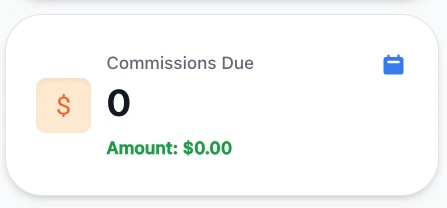
This tile lists all due commissions that have not been paid to the agent.
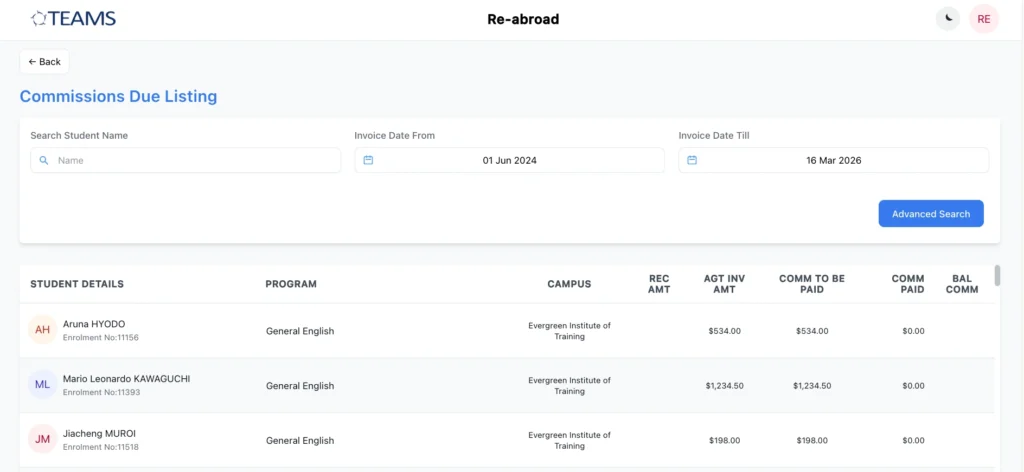
The listing grid provides:
- Student and program details
- Campus
- Student received amount
- Agent invoice amount
- Commission details, including amounts paid and outstanding
There are more filters (Program, Campus) available under the advanced search. In the listing screen, you will see a few of the fields available, which are explained below:
Stud Rec Amt: Total amount paid by student for example: $2,000.00
Agt Inv Amt: Displays the total agent invoice amount. Example: $770.00
Comm To Be Paid: Displays the amount based on the receipt amount.
Comm Paid: Commission that has already been paid to the agent.
Bal Comm To Be Paid: Displays the remaining commission amount after deducting the commission paid.
The Future Commission Tile
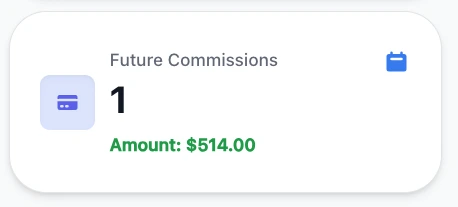
The Future Commission tile provides projections for commissions that are expected from upcoming student enrolments. It lists agent commission invoices that are scheduled for future dates. These invoices have already been created in the system but are not yet due or payable.
Displayed details include:
- Student and program information
- Campus
- Invoice number and date
- Projected commission amount
The list of records also depends on the date range that has been selected.
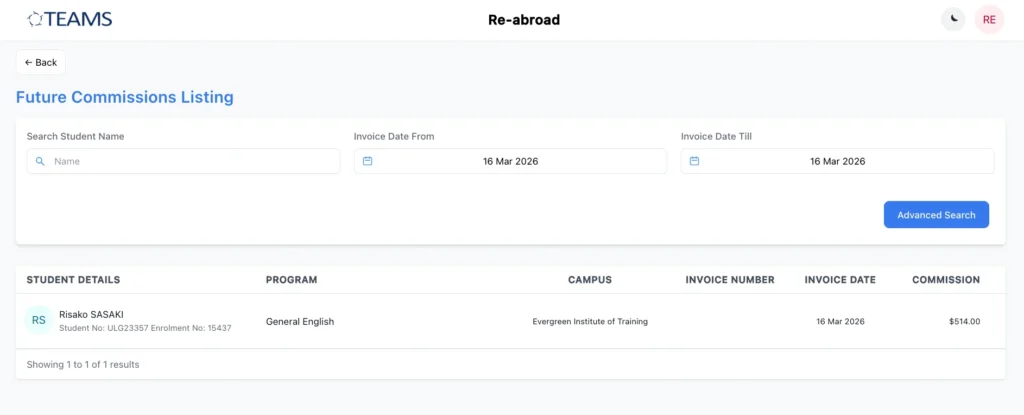
Enhancement: The start date for the Future Commission listing now automatically defaults to today's date.
The Paid Commission Tile
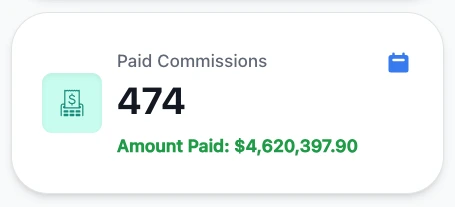
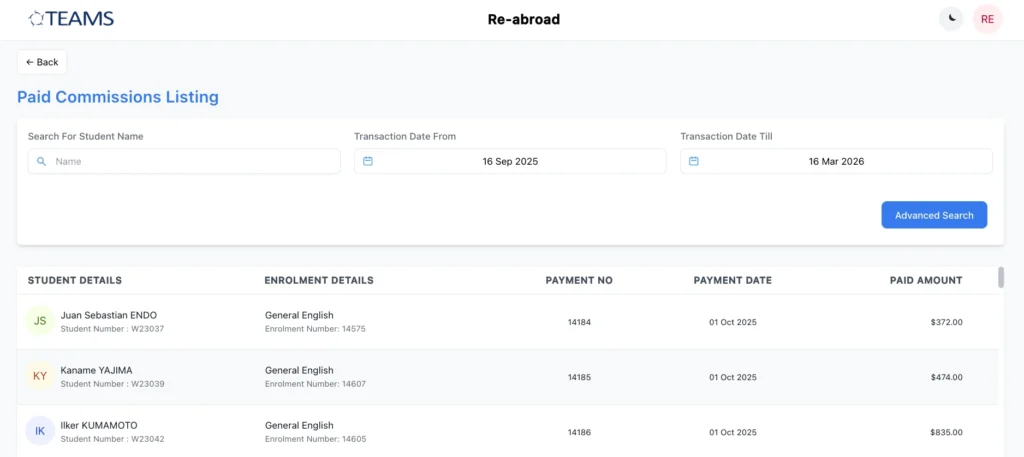
The Commission Paid tile displays records of all historical commission payments that have been processed via pre-deducted or post-deduction.
Each record includes:
- Student details
- Enrolment information
- Transaction number
- Transaction date
- Paid amount
Agent Change Request
Agents can now submit Change Requests directly through the Agent Portal when updates to their profile information are required. This allows agents to request changes in a structured and trackable way. The portal ensures that the most recent request always appears first, making it easier to track updates.
Change Password Screen
A Change Password option is now available within the Agent Profile section. Agents can securely update their portal password whenever required.
Additional Features
The Agent Portal has a Night Mode and Day Mode view, which can be accessed from the moon/sun icon located on the top right side beside the Profile icon. This allows agents to switch between light and dark display modes depending on their viewing preference.