Admin > Automated Actions > Automated Action Screen
The Automated Actions in TEAMS allow you to create targeted alerts that trigger automatically based on specific rules. The system includes department-based action types, making it easier to configure alerts for Finance and Student Services, ensuring that notifications are accurate, relevant, and delivered to the right people at the right time.
How it Works
Alert Section
When setting up an alert, start by selecting the Department. The options available in the Action Type dropdown will change depending on your selection:
- Finance Department → You’ll see options such as Overdue Fees, Upcoming Invoices, Ezidebit Schedule Confirmation, New Receipt, and Ezidebit Schedule Failed.
- Student Services Department →You’ll see options such as Student Birthday Alert, Agent Contract Expired, Agent Contract Expiring, Visa Expired, Visa Expiring, Orientation, COE Expiry Date, COE Expired, Missing USI, Enrolment Started, Assessment Resubmission, Upcoming Assessment Due date, Overdue Assessment due date, Assessment Successful, Assessment unsuccessful, New Holidays, Updated Holidays, Updated Enrolment Dates, Updated Application Dates.
The Assessment alerts allow colleges to automatically communicate assessment review outcomes to students. When an assessment outcome is recorded as Successful, Resubmission, or Unsuccessful, the system can automatically trigger an alert to notify the student.
Holiday alerts allow colleges to automatically notify students when holiday dates are added or updated. When a holiday is created or modified for a student, the system can automatically trigger an email notification.
Enrolment and Application date alerts allow colleges to automatically notify students when enrolment or application dates are updated. When these dates are changed, the system can automatically send an email notification to the student.
After choosing an Action Type, you can define the Action Rule and Campus. Based on this selection, additional fields may appear under the Filter section to help refine the alert.
Filters
Filters allow you to narrow down when and how an alert should trigger. The available filter fields will adapt depending on the selected action type and rule, giving you more control over alert conditions.
Actions
In the Actions section, you can decide how the alert should be delivered. Options include:
- Send Email To → select recipients for email alerts
- Email Template → choose which template will be used
- Send SMS To → define SMS recipients
- SMS Template → choose the SMS content
- Send Notification To → specify TEAMS users who should receive an internal notification
- Notification Template → select the in-system notification template
For the Assessment alerts, Holiday, and Enrolment/Application date alerts, you will first need to prepare the email templates that will be used for the notifications. To do this, navigate to the Email Template Screen and create the required templates for your assessment alerts.
Once the templates are created, you can configure the alert by navigating to Admin → Automated Action, selecting the Student Service department, and choosing the relevant Action Type such as Assessment Successful, Assessment Unsuccessful, or Assessment Resubmission, New Holidays, Updated Holidays, Updated Enrolment Dates, or Updated Application Dates.
In the Actions section, you can then specify who the email should be sent to and select the email template that will be used for the notification.
At the bottom, tick the Active checkbox to enable the automated action.
The alerts are more accurate and department-specific, helping staff act quickly on Finance and Student Services updates without manual monitoring
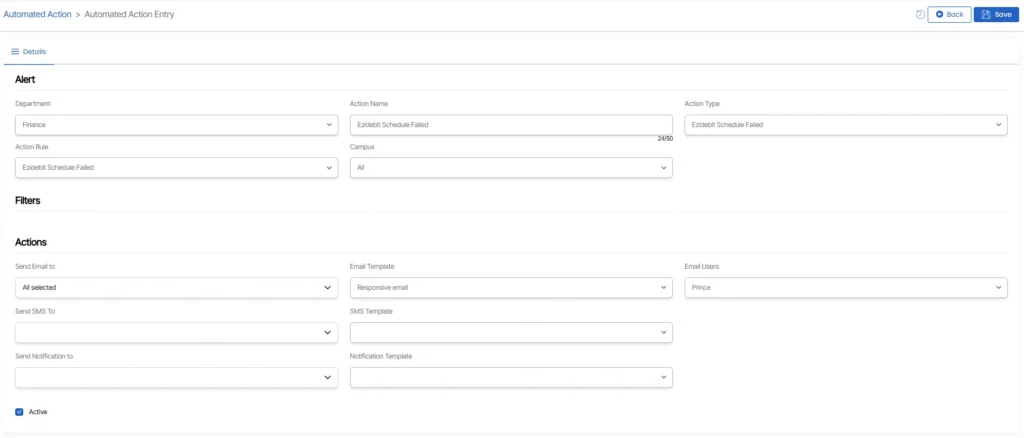
The automated alerts are more powerful and flexible. For example: A Student Services team can receive alerts for upcoming or expired COEs, ensuring timely compliance. The Finance team can be instantly notified if an Ezidebit schedule fails.
Assessment alerts can automatically notify students about their assessment outcomes, reducing manual follow-up by staff and ensuring timely communication.
Holiday alerts can automatically notify students when their holiday dates are added or updated, ensuring clear communication.
Enrolment and application date alerts can automatically notify students when their enrolment or application details change, ensuring they stay informed.