Enrolment dashboard > Financial tile > Cancel Multiple Invoice
On the Student Financial Detail screen, there is a process for cancelling multiple invoices in bulk. This functionality introduces checkboxes alongside an invoice cancel icon within the grid.
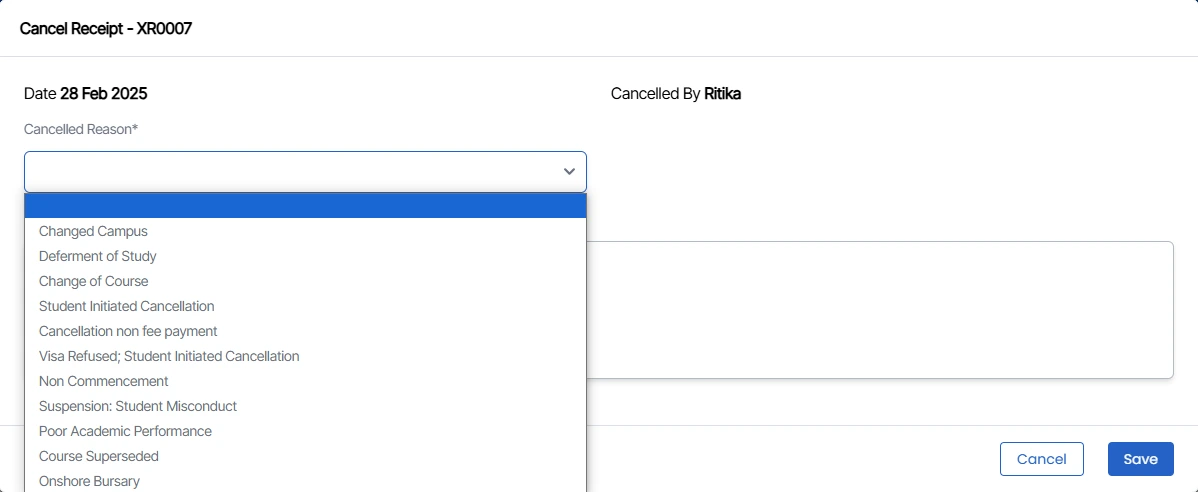
To cancel multiple invoices for a particular enrolment, you can now easily select the checkboxes corresponding to the invoices you wish to cancel. Once the desired invoices are selected, clicking on the cancel invoice icon will initiate the cancellation process. You will then be prompted to provide a cancellation reason, and upon selection and saving, the chosen invoices will be cancelled efficiently.
How to cancel an invoice

To cancel an invoice, you need to tick the tickbox of that specific invoice and then click on  this icon. Further cancel invoice pop-up will appear.
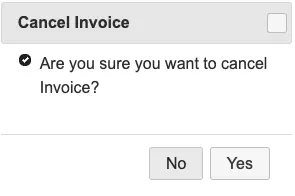
Another pop-up will open after selecting Yes
Select your Cancellation Reason and click on Save.
Step to cancel multiple invoices

- Select the invoices you need to cancel as shown in the above image.
- After that, click on the burger menu.
- Select Cancel multiple invoices option from the dropdown.
- Go through How to cancel invoice to move further.