Enrolment Dashboard > Result and Progress Tile > Print Icon
The certificate report template provided here is designed for easy copying and customisation to meet your specific needs. Once copied, you can create numerous customised templates that the system can generate for you.
This template is particularly suitable for generating various types of certificates, including:
- Qualification certificates
- Statement of Attainment (SOA)
- Records of results (transcripts)
- Certificate of Attainment/Achievement
- Certificate of Attendance
These certificates can be utilised to recognise and acknowledge different levels of achievement, completion, or participation.
IMPORTANT: It is important to note that this template can be utilised for generating certificates at both the application and enrolment levels through the Enrolment Dashboard. To receive further guidance on customising the report templates according to your requirements, we recommend referring to the instructional post titled Report Templates. This post provides step-by-step instructions on modifying the templates to match your desired format and content.
How do the filters work
| Filters | Explanations |
|---|---|
| Only print Subjects /UoS | With any result – This radio button will print subjects with any result but does not print subjects if no result is marked. If you select this radio button then the system will allow you to print the final result or progressive results or both. Only successful results – It prints subjects with successful results only. With or without results – This radio button will print all subjects whether a result is marked or not. If you select this radio button then the system will allow you to print the final result or progressive results or both. |
| Sort Subjects based on | Subject Code – This will help you to sort the subjects based on subject codes. Result Date – This radio button will print all subjects whether a result is marked or not. If you select this radio button then the system will allow you to print the final result or progressive results or both. |
| In result grid | Print Term/Year – If you want to print term/year in the result grid then you may select this radio button. Print Result Year – If you want to print only the result year in the result grid then you may select this radio button. Parchment Issue Date – This radio button will print all subjects, whether a result is marked or not. If you select this radio button then the system will allow you to print the final result or progressive results or both. Parchment Number – The parchment number updated on the training plan and result screen will be visible here but can’t be changed on this screen. Test Results – You can select the Single or Multiple test results from this dropdown. Choose your custom template – Choose your customised template. Click the Generate button. Important: While issuing the certificate, users will not be able to select a public holiday date as the parchment date. |
In the Enrolment Dashboard, navigate to the result tile and click on the print icon above in the top-right corner.
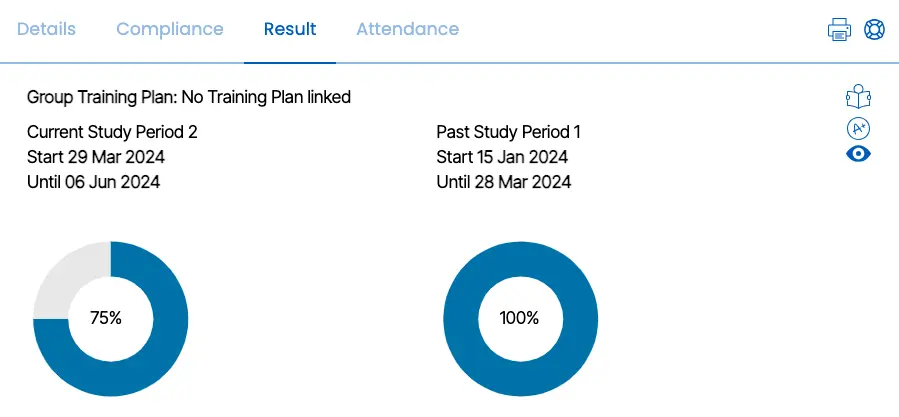
After you click on a print icon a dropdown will open simply click on certificate report. After you click on Certificate report a popup will appear.
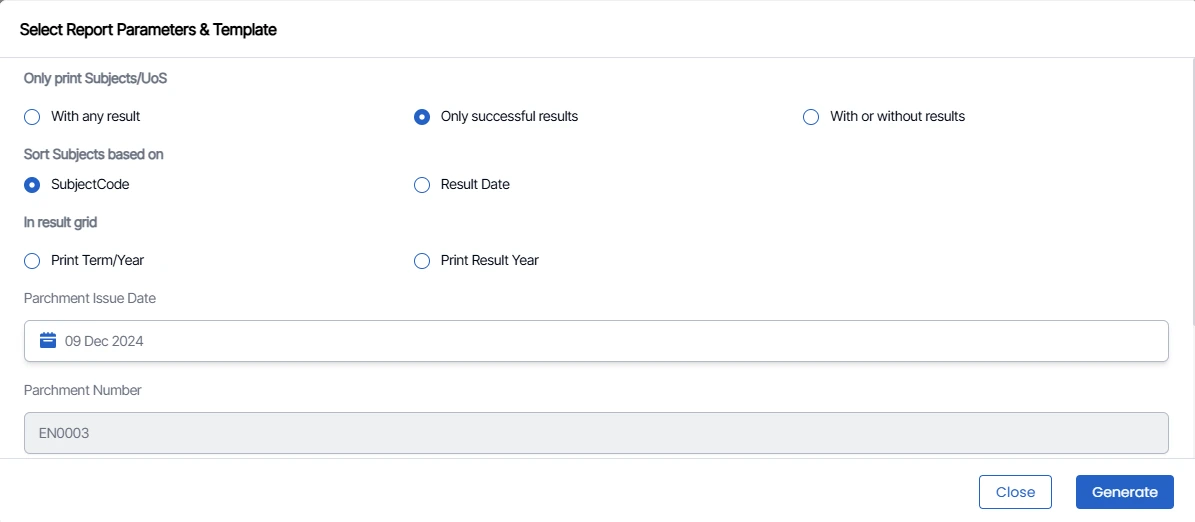
In the pop-up window, fill in the details in the parameters. select the custom template from the dropdown accordingly, and click on generate and the certificate report will be generated.