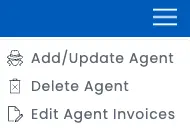
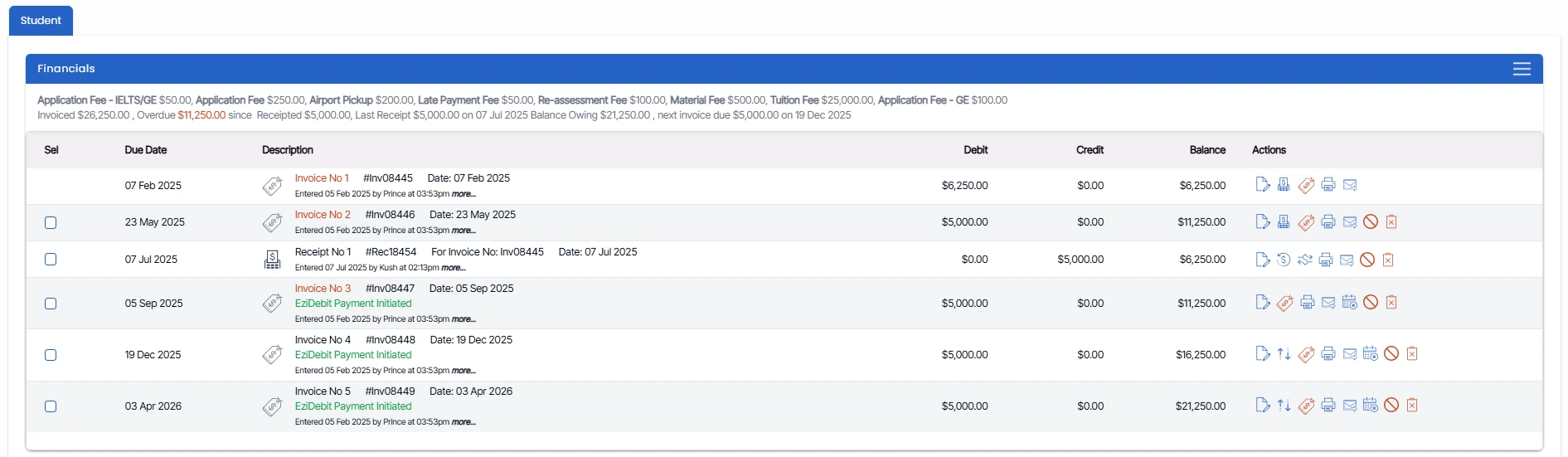
Enrolment Dashboard > Financials Tile
This tile will give you a summary of all the student’s and agent’s financial transactions.
Student Tab
All the financials related to the student enrolment will be visible under the Student tab. You will be able to see the total invoiced amount, overdue amount, total receipted amount, total overpaid, the invoice date, and the balance owed.
You can mark both current and future invoices as negative by selecting the negative invoice icon. If a negative invoice is no longer needed or was created in error, you can delete it from the Financials tab using the delete icon, ensuring accurate invoicing.
Users can delete a student’s invoice or receipt directly from this tile. However, the delete function is permission-based. To enable this function, users must request access by emailing TEAMS support with approval from their manager or higher authority.
Additionally, invoices and receipts can be created even after the enrolment end date. When creating an invoice, select a date after the enrolment completion date. For receipts, enter a date after enrolment completion but before the invoice creation date.
Within the Financials tile, you can send an email directly from the Receipt row using the Print and Send Receipt icon. A confirmation message will appear asking whether you want to generate the receipt and send it to the student’s inbox. If you select OK, a pop-up window will open where you can choose a Custom Template and an Email Template; once selected, TEAMS will generate the receipt and automatically email it to the student with the template attached. If you select Cancel, the receipt will not be generated, and only the email will be sent.
Note: The invoice and due dates for an enrolment can be edited even if the invoice has already been paid. However, you cannot modify any details within the Fee Selection tile on the Edit Invoice screen for paid invoices.
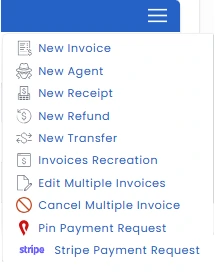
Student Tab > Burger menu
The Financial Tile Burger Menu includes:
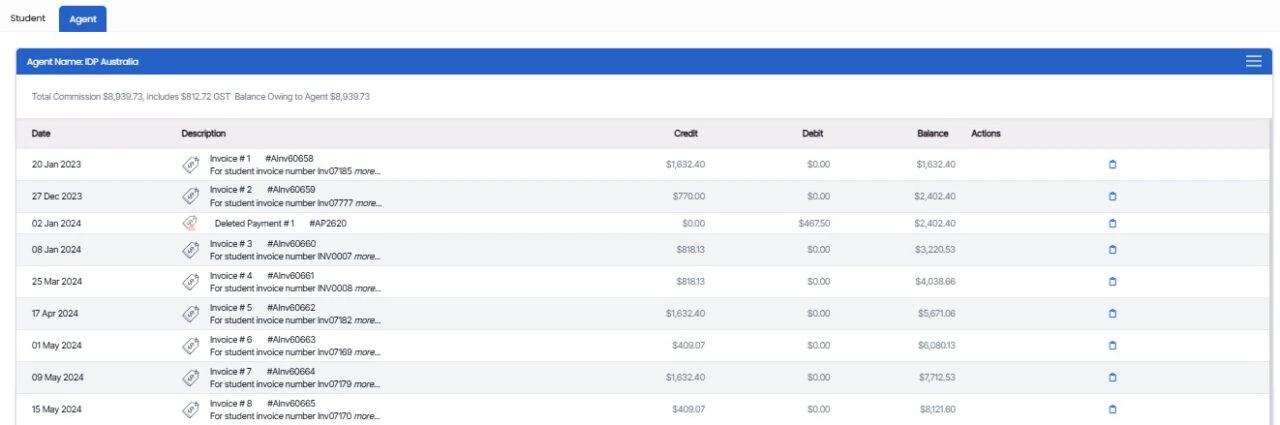
Agent Tab
On the Enrolment Dashboard screen, under the agent tab, you will see the agent name linked to the enrolment, the total commission, the last payment, the total balance owed, and the agent’s invoice in a sorted order by date.
Agent Tab > Burger menu