We’re excited to introduce the latest TEAMS update, packed with powerful enhancements to streamline workflows, boost communication, and provide clearer insights across your operations.
Highlights of this release
- Restrict Student Portal Access
- Temporarily Disable OTP for Student Portal Login
- Student Portal Enhancements
- Delete Multiple Documents in One Go
- Record the Audit Log for Deleted Documents
- Enrolment Overall attendance Logic Updated
- Certificate Template Date Format Enhancement
- Enrolment Program Result Screen Enhancement
- Enrolment Program Result Listing Screen Updated
- Passport Details for Local Students Now Available
- Qualification Issued Report Enhancement
- New Columns in the Application Processed Report
- New Columns in the Agent Performance Report
Restrict Student Portal Access
We’ve introduced a new enhancement that allows colleges to restrict Student Portal access for current students while keeping their enrolment active in TEAMS.
This is useful when a student must remain active for reporting purposes, such as AVETMISS, but should no longer access the portal or submit assessments.
Portal access can be restricted or restored from the Profile tile on the Student Dashboard for students with a current enrolment.
When access is restricted, the system records the reason, updates the icon status, and prevents the student from signing in to the Student Portal. Access can be restored later if required.
For more information, please refer to the video.
Temporarily Disable OTP for Student Portal Login
We’ve introduced a new setting in TEAMS that allows colleges to temporarily disable the OTP requirement for Student Portal login.
This is especially useful when staff need to access the portal using student login details for demonstrations, training, or testing purposes.
To disable OTP, go to Admin > Site Setting, scroll to the Student Portal Settings section, untick Require OTP for Login, and save the changes.
This setting can be enabled again at any time when required.
For more information, please refer to the video.
Student Portal Enhancements
We’re pleased to introduce an enhancement to the Student Portal in TEAMS.
The Study Period section now gives students a clearer breakdown of their enrolment timeline by showing Total Study Weeks, Academic Holiday Weeks and Student Holiday Weeks.
Students can also view their current timetable directly from the portal, making it easier to access their active class schedule.
In addition, the attendance details shown in the portal are now aligned with the Student Dashboard, so students can view consistent current and overall attendance information.
This update helps students access their study period, timetable, and attendance details more easily in one place.
For more information, please refer to the video.
Delete Multiple Documents in One Go
We’ve introduced a new enhancement where the Delete icon is now permission-based, and authorised users can also delete documents in bulk.
To enable access, go to Admin > User, open the relevant user record, and manage the Remove Document Delete Permission checkbox.
Please note that this checkbox works in reverse:
- If the checkbox is unselected, the permission is enabled
- If the checkbox is selected, the permission is removed
Users can delete multiple documents from the Document Log screen by selecting the required records and choosing Delete Multiple Documents from the burger menu.
For more information, please refer to the video.
Record the Audit Log for Deleted Documents
We’re pleased to introduce a new enhancement that records an audit log entry whenever a document is deleted by a user in TEAMS. T
his helps your team clearly track deletion activity and review who removed a document.
Separate permission options have also been added in the User Entry screen to manage delete access for documents and financial records. The audit log is available across key document-related screens, with all deletion activity also recorded in the Master Audit Log.
For more information, please refer to the video.
Enrolment Overall Attendance Logic Updated
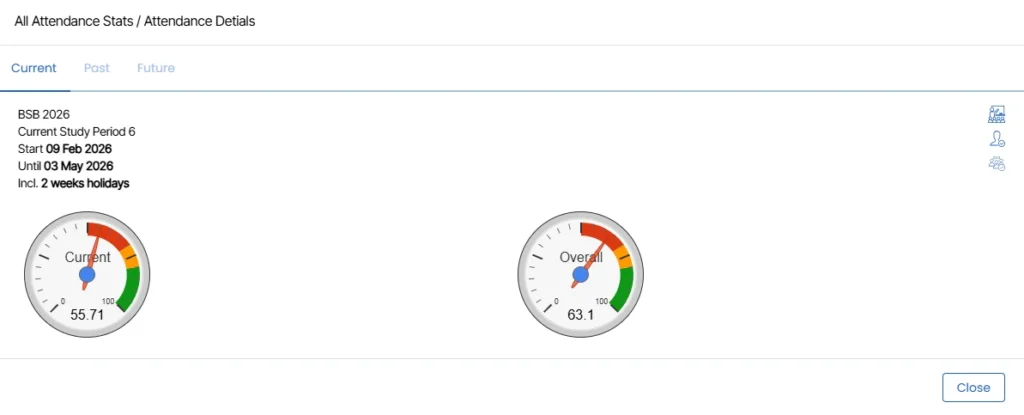
We’re pleased to introduce an important update to how Overall Attendance is calculated and displayed in TEAMS.
Previously, the Overall Attendance shown at the enrolment level under attendance tile and overall attendance of study periods, followed the same logic as the enrolment’s overall attendance record, which meant it did not separately reflect attendance across individual study periods.
With this update, the system now calculates and displays Overall Attendance based on the student’s study periods. This means the attendance shown will now be derived from study period attendance data, giving your team a clearer and more accurate overall view.
As part of this change, Enrolment Overall Attendance and Study Period Overall Attendance are now treated as two separate values in the system, as each serves a different purpose.
This enhancement helps provide more meaningful attendance visibility and supports better monitoring of student attendance across the full enrolment.
Certificate Template Date Format Enhancement
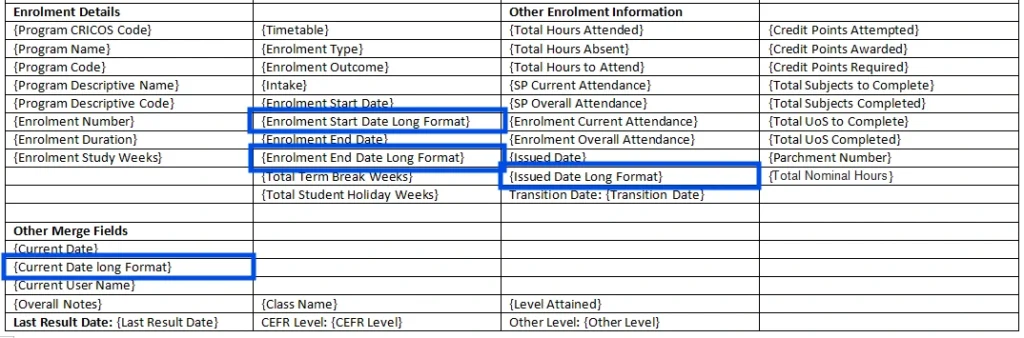
We are pleased to introduce an enhancement to the Certificate Template date format.
With this update, a new Date Long Format merge field has been added to the Certificate Report. This allows the date to be printed in a full long-date format on the generated certificate, helping present the information clearly and formally.
To use this in your certificate template, simply insert the new Date Long Format merge field into the report wherever you want the date to appear.
This enhancement gives you more flexibility in certificate design and helps ensure your printed documents look more professional and polished.
Enrolment Program Result Screen Enhancement
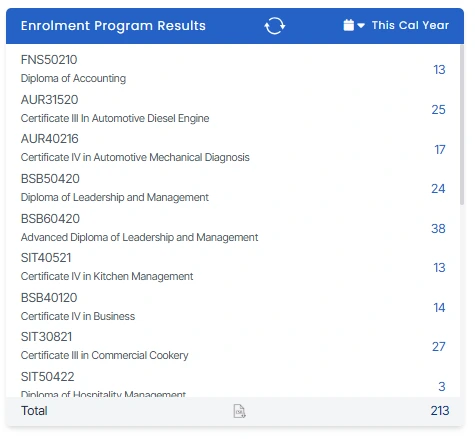
We are pleased to share an update to the Enrolment Program Result screen.
With this enhancement, tile will now display both the Program Name and the Program Code together. This makes the information clearer and helps users quickly identify the correct program without confusion.
By showing both details directly on the tile, the screen becomes easier to read and more user-friendly, especially when managing multiple enrolments or reviewing program results.
This improvement is designed to support faster navigation and better visibility of program information within the Enrolment Program Result screen.
Enrolment Program Result Listing Screen Updated
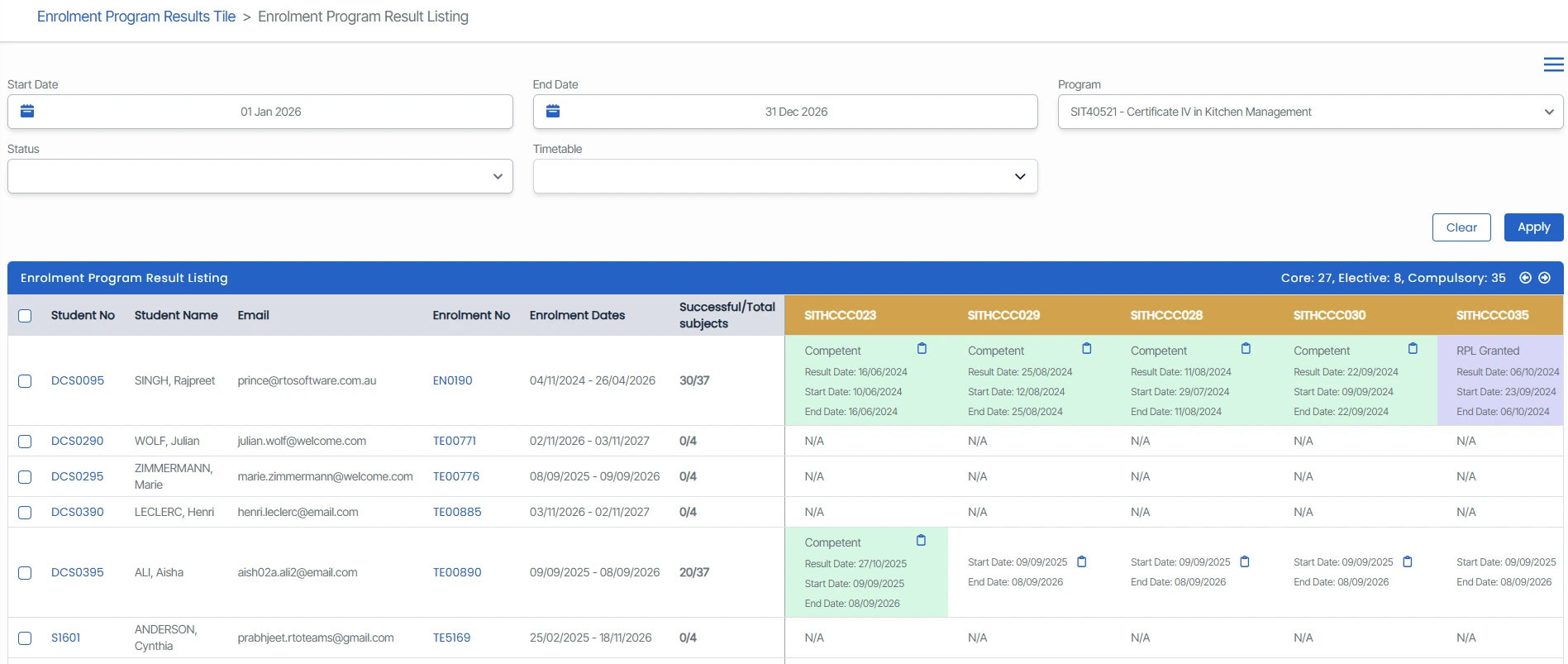
We’re pleased to introduce an improvement to the Enrolment Program Result Listing screen in TEAMS.
Previously, cancelled enrolments were also shown in the listing grid, which could make the screen appear less relevant when reviewing active result records.
With this update, cancelled enrolments will no longer be displayed in the listing grid. This helps present a cleaner and more focused view, making it easier for your team to review relevant enrolment program result information.
This enhancement improves screen usability and helps staff work more efficiently when managing and checking program result records.
Passport Details for Local Students Now Available
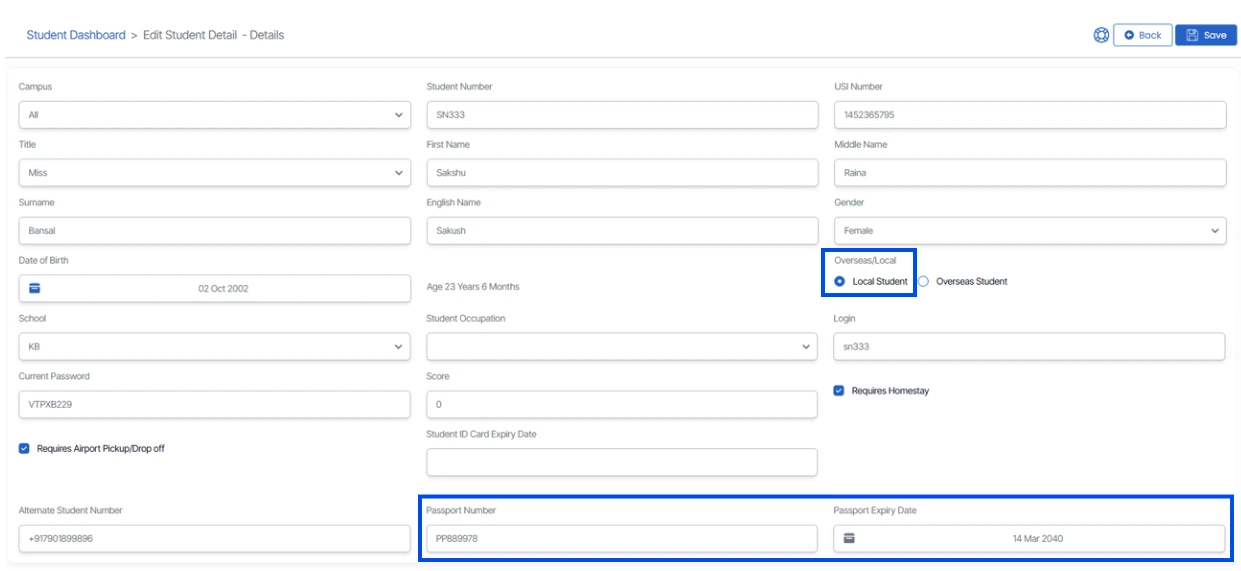
We’re pleased to introduce a new enhancement in TEAMS that improves how passport details can be managed for local students.
Previously, passport details were only available for overseas students under the Overseas tab.
With this update, the Passport Number and Passport Expiry Date fields are now available under the Details tab for local students.
This allows your team to record passport information for local students where required. In addition, the Passport Number can now also be printed in the Offer Letter generated for local students.
This enhancement gives colleges greater flexibility when capturing important identification details and helps ensure the required information can be included in official documents when needed.
Qualification Issued Report Enhancement
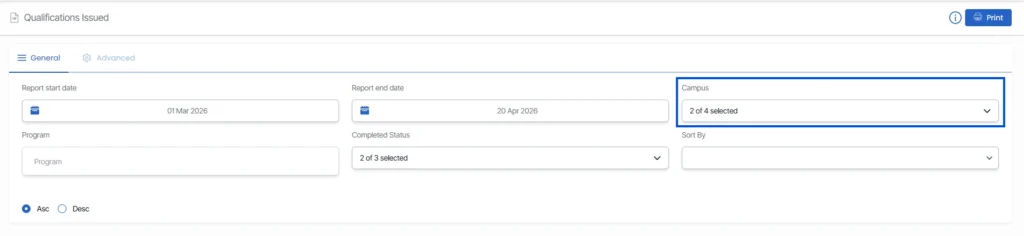
We are pleased to introduce an enhancement to the Qualification Issued Report.
With this update, users can now select multiple campuses from the filter/parameter screen when generating the report.
This makes it easier to review and generate qualification issued data across more than one campus at the same time, without needing to run separate reports for each location.
You can generate this report by navigating to the Compliance menu, selecting Qualifications Issued Report, choosing the required parameters, and clicking Print.
New Columns in the Starters Report
We’re pleased to introduce an enhancement to the Starters Report in TEAMS.
Three new columns have been added to provide clearer information when reviewing student commencements:Total Tuition Fee Received/Paid, Total Other Fees Receipted/Paid and Onshore.
These new columns allow your team to quickly review key fee details and student location status directly within the report.
To generate the report, navigate to the Student menu and select Starters Report. Choose the required parameters, then click Print.
For more information, please refer to the video.
New Columns in the Application Processed Report
We’ve added a new Tuition Fee Paid/Receipted column to the Application Processed Report, positioned next to the existing Tuition Fee column.
This new column helps users quickly view the actual tuition fee amount paid or receipted against each application.
As part of this enhancement, the report logic has also been updated so cancelled receipts are excluded, which helps ensure the displayed amount is more accurate and reliable.
You can generate this report by navigating to the Marketing menu, selecting Application Processed Report, choosing the required parameters, and clicking Print.
For more information, please refer to the video.
New Columns in the Agent Performance Report
We’ve introduced a new enhancement to the Agent Performance Report in TEAMS, with a new Agent Commission Rate column now added next to the Agent Commission Amount column.
This update allows users to view both the commission percentage and the commission value together in the same report, making commission details easier to review at a glance.
You can generate this report by navigating to the Marketing menu, selecting Agent Performance Report, choosing the required parameters, and clicking Print..
For more information, please refer to the video.